How to set up IPTV on all devices

Welcome to the IPTV setup guide for all devices. Follow these simple steps on how to set up IPTV on all devices and start streaming your favorite content with UltraStreams.

How to setup IPTV on Fire TV Stick
Since we are going to sideload on FireStick, we must first enable the security option “Apps from Unknown Sources” in the FireStick settings.

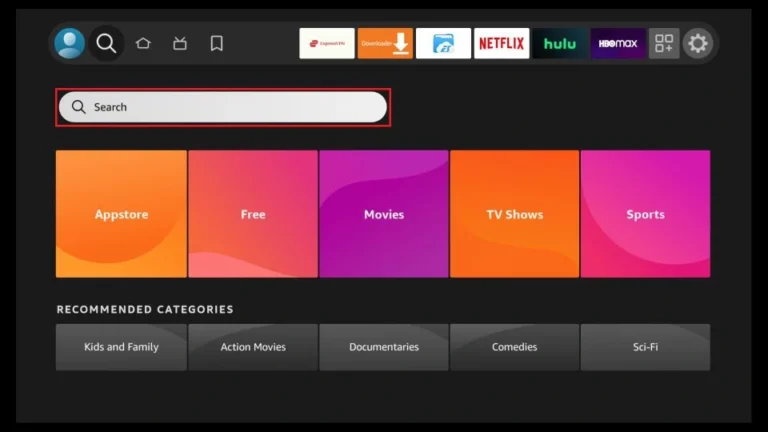
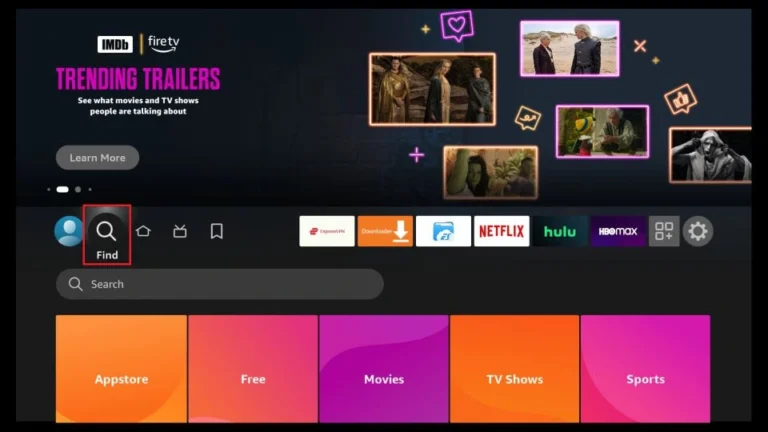
1. You need to be on the home screen of FireStick. Select FIND.

2. Now, click Search

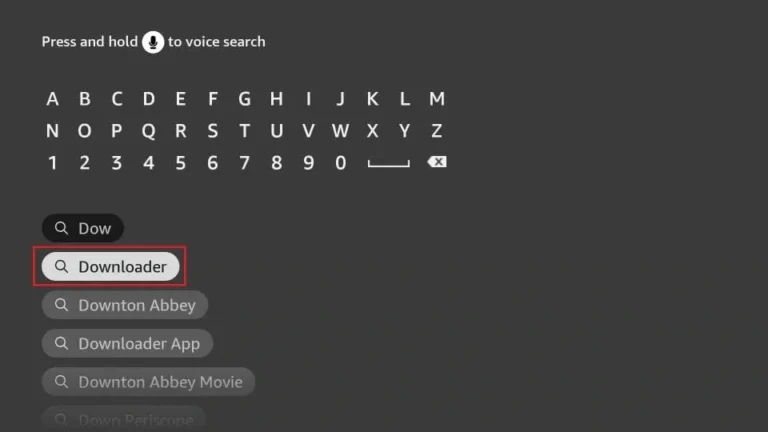
3. In the Search window, search for the app called Downloader. This is the app through which we will sideload StaticIPTV PLAYER on FireStick.

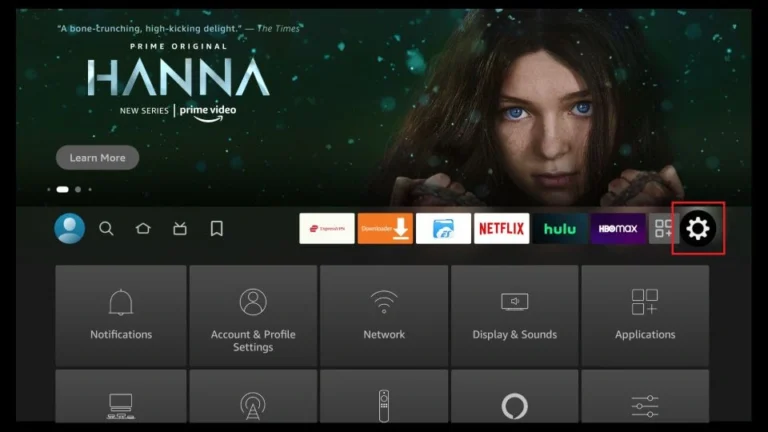
4. After installing the Downloader app, get back to the home screen and select Settings.

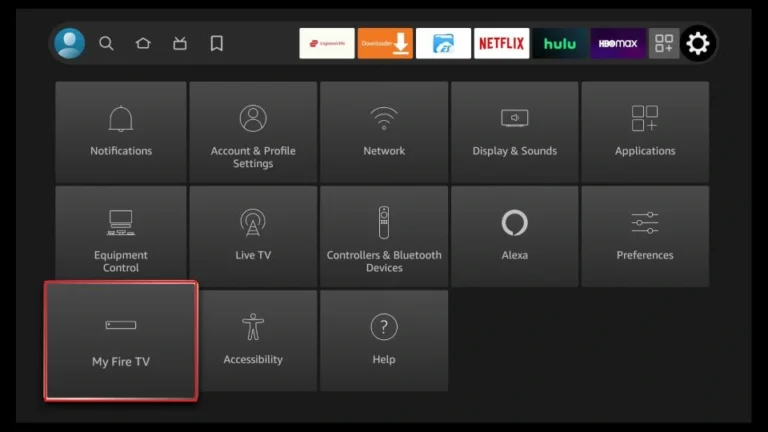
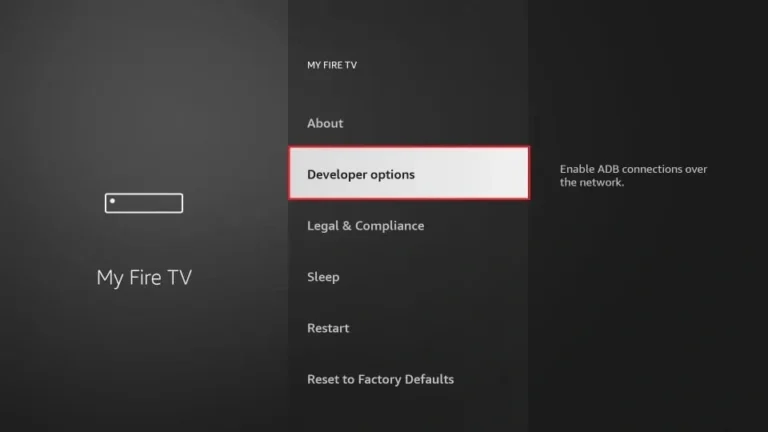
5. Within Settings, go to the option My Fire TV and open it.

6. Now, the next option you will access is Developer Options. Note: If you do not see Developer Options, go to Settings > My Fire TV > About. Now, select Fire TV Stick and click it 7 times to enable Developer Options..

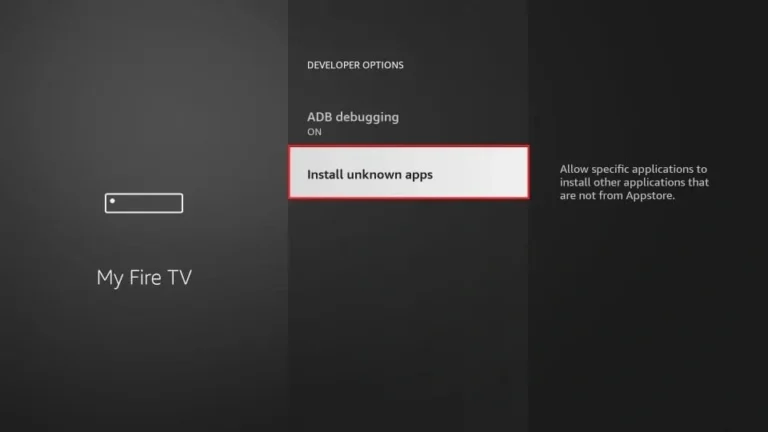
7. On the window that opens next, go ahead and click on Install Unknown Apps. Note: If you still have the older version of the FireStick interface, click Apps from Unknown Sources.

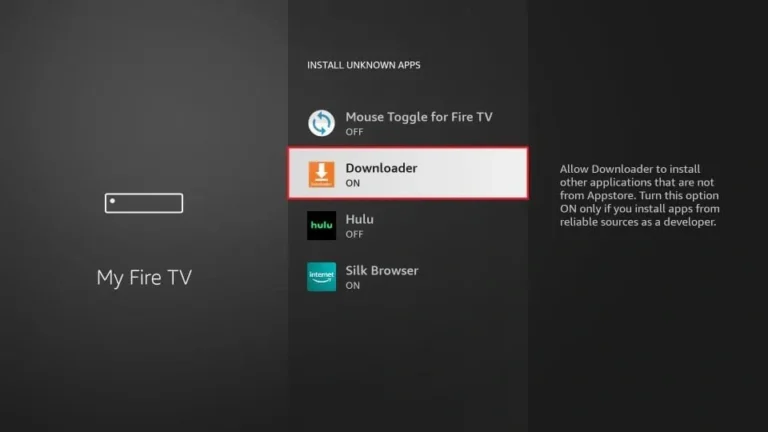
8. Turn the option ON for the Downloader app.

Once you have enabled Apps from Unknown Sources, you may start installing the UltraStreaams Player app on FireStick. Here are the steps:

9. You may now open the Downloader app. Some prompts will be displayed when you run it for the first time. Dismiss them by choosing the appropriate options. When the following screen of the app appears, click the textbox highlighted in the image below.

10. Now, simply type in the following path/URL on this popup window with the onscreen keyboard:

 (downloader code 153009)

Click OK

11. Wait until the UltraStreaams Player APK is downloaded onto your FireStick device.

Downloader app will automatically run the ultraStreaams Player APK for you. Go ahead and click Install

Getting Started with StaticIPTV Player App

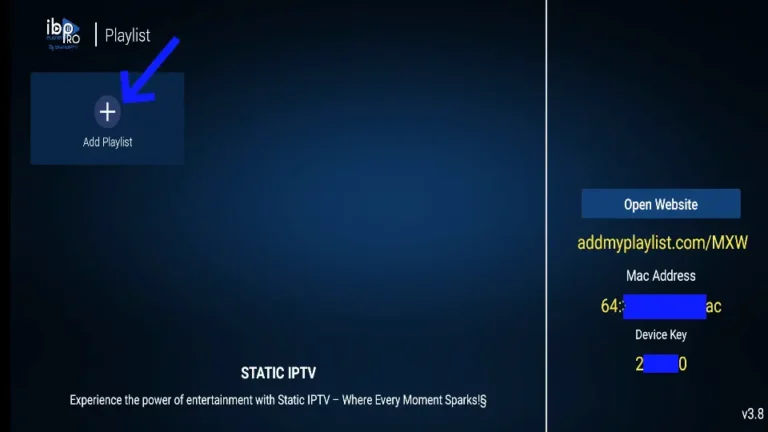
1- The app’s home page will appear. Click on “Add Playlist.”

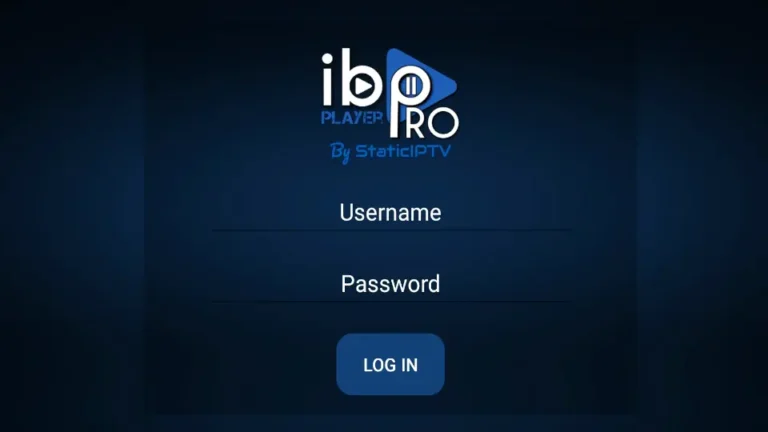
2- Enter your username and password (check your email inbox/spam for “Details of your order”).

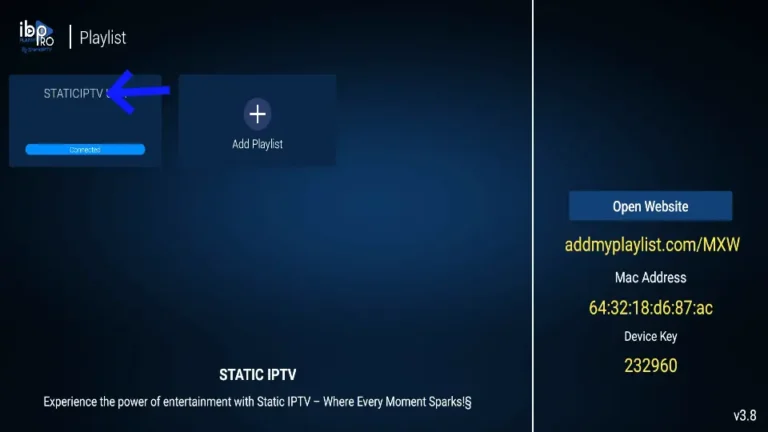
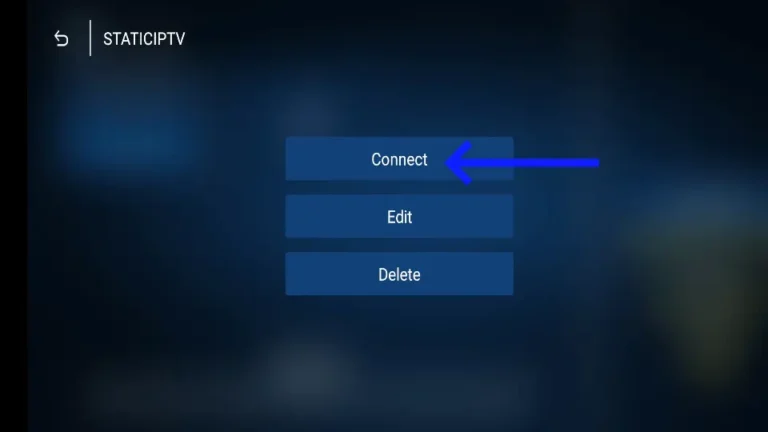
3- Click on the StaticIPTV Playlist, and then click Connect.

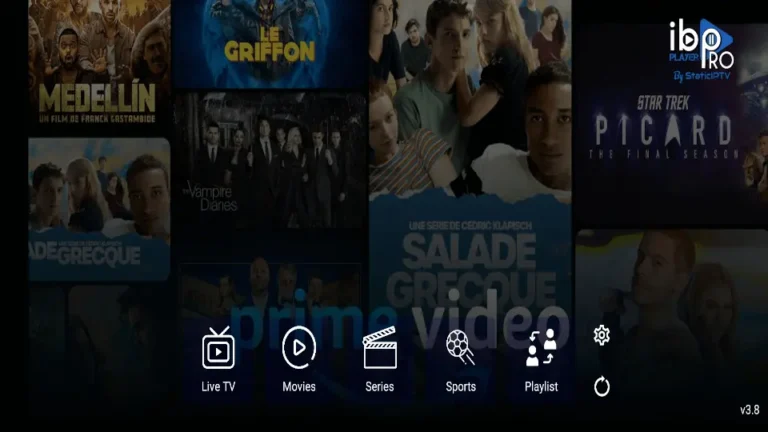
4- Enjoy watching your live TV/Movies Series.

Note: If you still have issues, please take a photo of your Mac address and device key with your phone and send it to our team via chat, WhatsApp, or email: admin@UltraStreams.store

Click here for live chat.
Click here to message us on WhatsApp.

Just go to the Play Store and search for IBO Pro Player.
Direct link to Play Store: Click Here

Note: Numerous applications claim to be the genuine Ibo Player Pro. To qualify for free activation, ensure that you download and install the original application as depicted in the image below:

Just go to the App Store and search for IBO Pro Player.

Direct link to App Store: Click Here

Note: Numerous applications claim to be the genuine Ibo Player Pro. To qualify for free activation, ensure that you download and install the original application as depicted in the image below:

image below:

Just go to the App Store and search for IBO Pro Player.

Direct link to App Store: Click Here

Note: Numerous applications claim to be the genuine Ibo Player Pro. To qualify for free activation, ensure that you download and install the original application as depicted in the image below:

image below:

Just go to the App Store and search for IBO Pro Player.

Direct link to App Store: Click Here

Note: Numerous applications claim to be the genuine Ibo Player Pro. To qualify for free activation, ensure that you download and install the original application as depicted in the image below:

image below:

Simply navigate to Roku and search for the IBO Player Pro App.

For direct access to the Roku Store, please follow this link: Click Here

Note: Numerous applications claim to be the genuine Ibo Player Pro. To qualify for free activation, ensure that you download and install the original application as depicted in the image below:

image below:

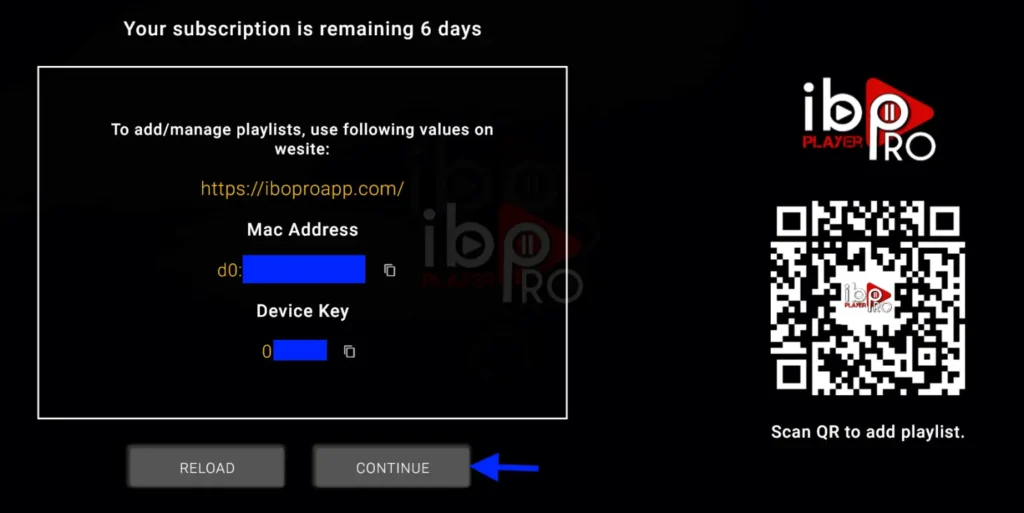
1- A popup image displaying your Mac Address and device key will appear. Click “Continue” (don’t forget to send us your Mac Address and device key via chat, email, or WhatsApp for activation).Click here to message us on WhatsApp.

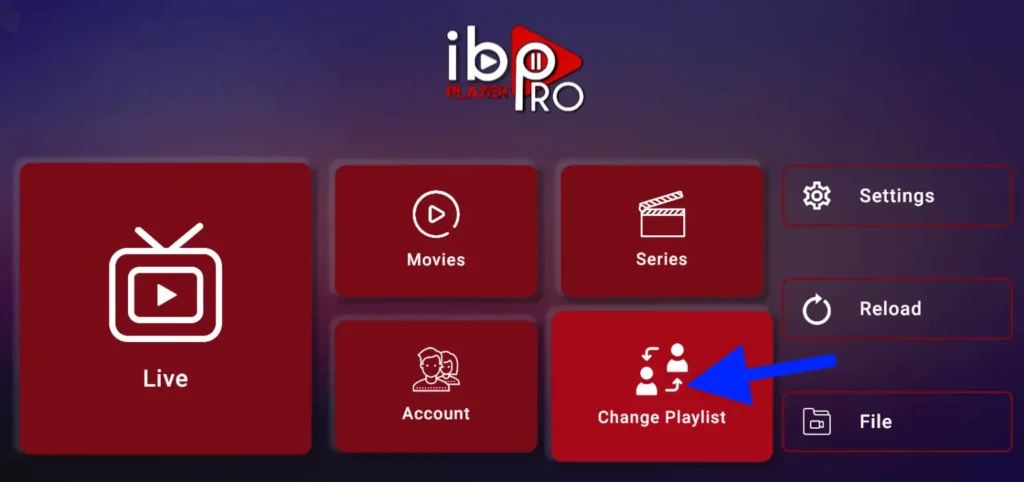
2- App Home page will appear. Click On Change Playlist

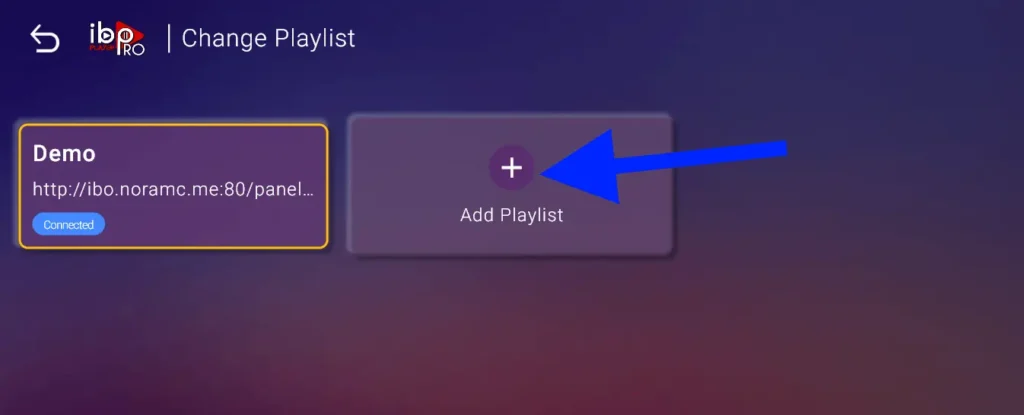
3- Click on Add Playlist

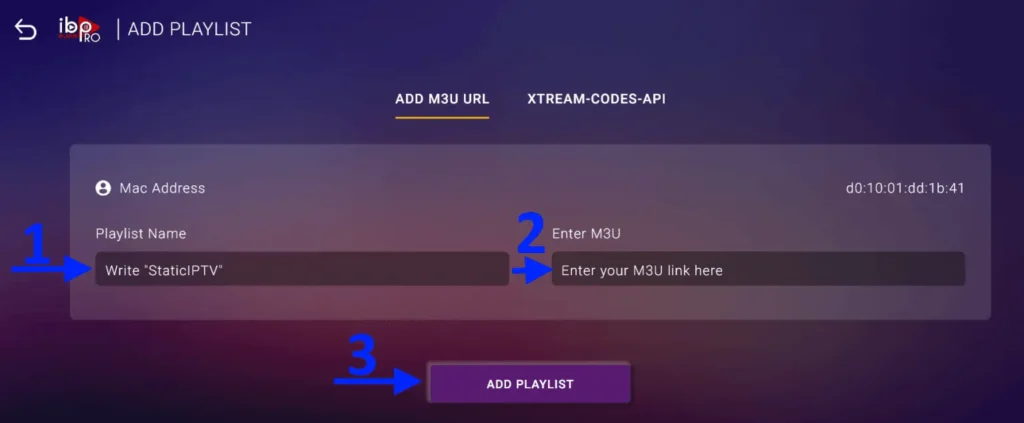
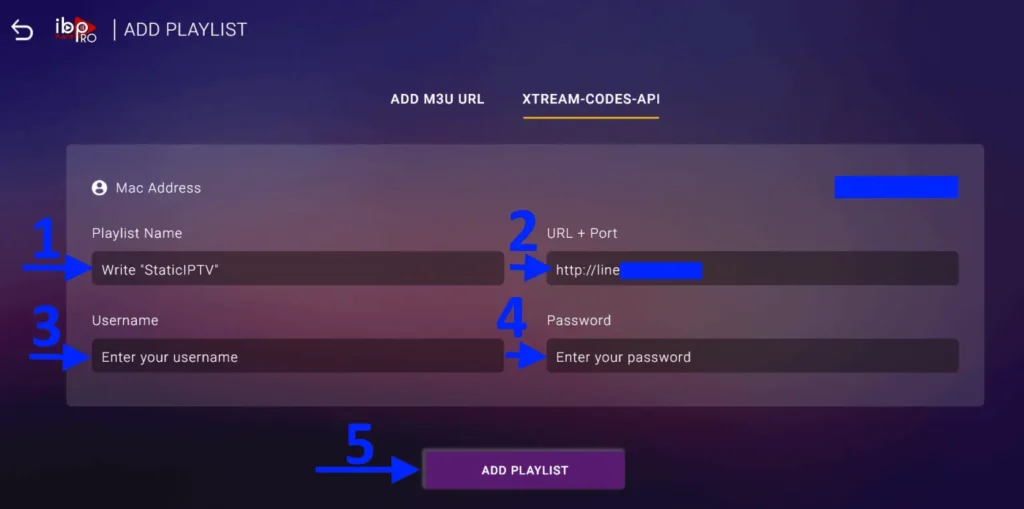
Note: You can add your playlist using one of the two methods explained below.

First: Add your m3u Link,  check for info in your email inbox/spam for Subscription Account Login Details

Second : Select tab Xtream-Codes-API and check for info in your email inbox/spam for Subscription Account Login Details Details

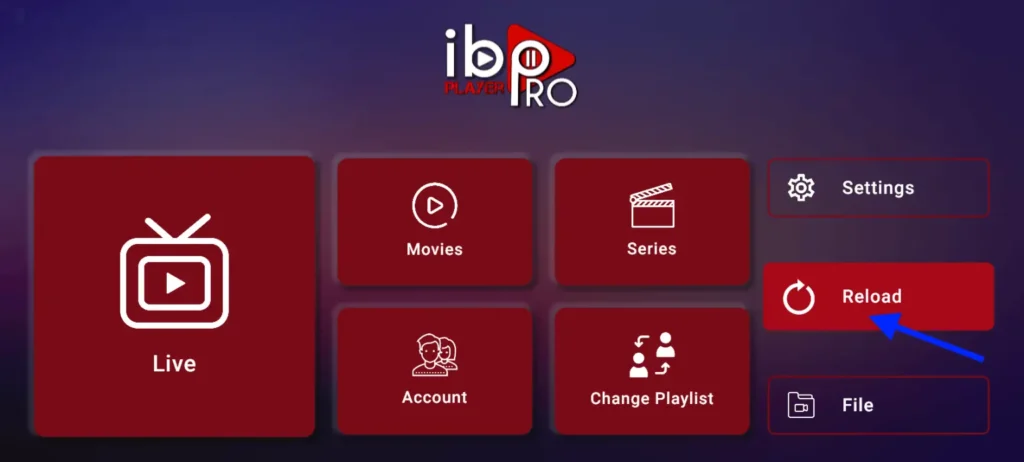
4- Select Add Playlist. Make sure playlist is connected back to Home Page and click Reload Details Details

Enjoy your live Movies Series.

Note: If you still have issues, please take a photo of your Mac address and device key with your phone and send it to our team via chat, WhatsApp, or email:  admin@UltraStrems.store

Click here to message us on WhatsApp.
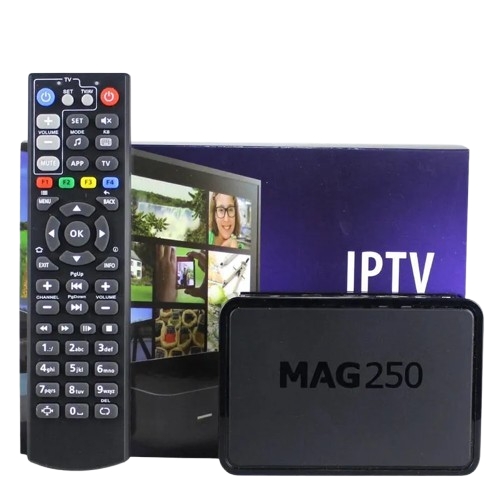
This tutorial will guide you through a simple and effective steps of installation your Mag (250/254/256…).
Step 1: When the box is being loaded the main portal screen appears. After that click on “settings”, and press the remote button “SETUP/SET”.


Step 2: Then press on “System settings” and click on “Servers”.


Step 3: Click on ‘Servers’


Step 4: Choose and Press option ‘Portals’


Step 5: In the ‘Portal 1 name’ line enter a portal name and in the ‘Portal 1 URL’ enter portal URL.

Therefore for the activation of our IPTV subscription on your MAG box, you must send us with your order the MAC address found on the label behind the box, the activation is done entirely remotely, just after activation, we will send you a URL link that you have to put on your PORTAL, as in the photo below:

Step 6 – Finally when you complete select and click ‘OK’ to save the changes.
Step 7 – Click ‘EXIT’ on the remote control after the settings are being saved.
Step 8 – Consequently you have to reboot the box. Choose the option ‘OK’ to make the

FAQS

What is IPTV?

IPTV stands for Internet Protocol Television, which allows you to stream live TV channels, movies, and shows over the internet rather than through traditional satellite or cable.

Can I use the IBO Pro Player to watch IPTV on all devices?

es, IBO Pro Player is compatible with various devices, including Android smartphones, tablets, smart TVs, and even PCs. After downloading and installing the app, you can easily set up IPTV by entering your subscription details.

Is it legal to use IPTV on my device?

The legality of IPTV depends on the service you are using. Official IPTV services that have proper licensing agreements are legal, but some unauthorized services might be illegal. Always check the legality in your region before subscribing.

What if my IPTV app doesn’t work on my device?

If your IPTV app isn’t working, try restarting your device, checking your internet connection, or reinstalling the app. If the problem persists, you might need to contact your IPTV provider for further assistance.

Premium Channels at Affordable Prices | IPTV Premium Experience a new world of television with our premium subscriptions from the best IPTV service provider.